Hidden Tesla Features You Should Enable in Your Model Y and Model 3
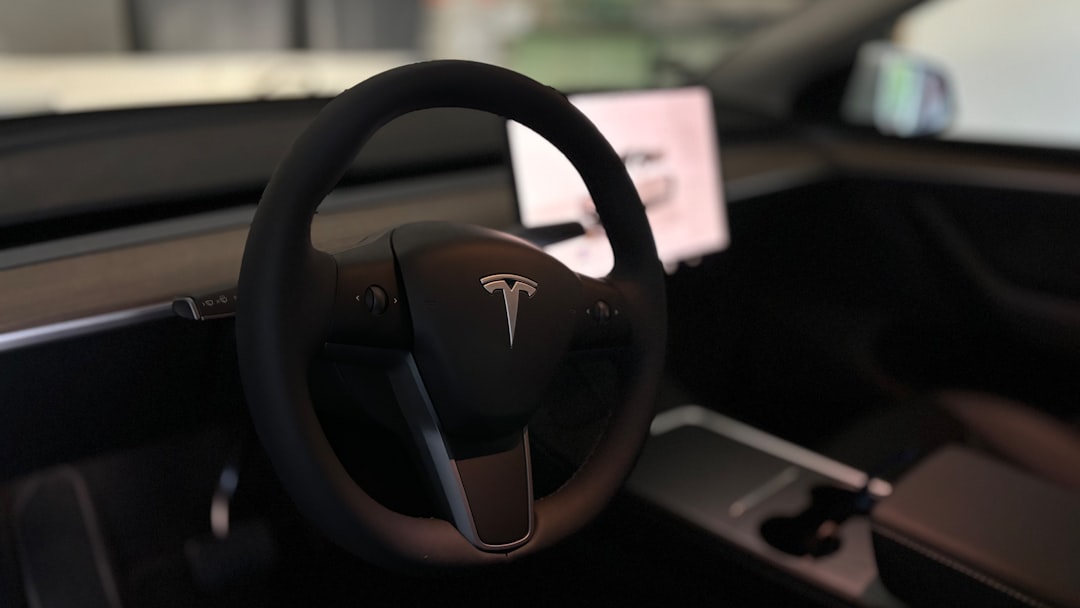
Explore hidden features in Tesla's Model Y and Model 3, from improved navigation shortcuts to unique Tesla ToyBox tools and emergency system tips.
Unlock the Full Potential of Your Tesla Model Y and Model 3
Tesla vehicles are renowned for their cutting-edge technology, and hidden within the interface are features that many owners overlook. If you're driving a Tesla Model Y or Model 3, several tools are available to improve navigation, customize your experience, and even handle emergencies. Here's a detailed guide to these lesser-known, but highly useful capabilities.
Enhanced Navigation Shortcuts
Tesla’s in-car navigation system is powerful, but you can save precious time by setting up quick shortcuts for your home and work. Once programmed into the car’s navigation system, simply swipe down on the small navigation box to route directly to your home. Similarly, a right swipe is designed to direct you to your workplace—though some users report intermittent issues with this function. If you're exploring unfamiliar areas on the map and want to save a location without a formal address, just tap and hold the spot on the map to drop a pin, which you can favorite, set as home or work, or instantly navigate to.
Send Destinations Directly from Your Phone
For those who like to plan trips on their phones, Tesla allows seamless integration. Within any mapping application, you can share a location directly with your car. Tap the “share” button, select the Tesla app, and the destination will appear on your center display for instant navigation. This feature is especially handy when planning multi-stop road trips, as you can set all destinations and even edit trip parameters like departure energy right from your phone.
Customizing the Tesla Interface
Customization is integral to the Tesla experience. While it’s well known that you can adjust the dock icons on the touchscreen, fewer people realize that you can add a fifth app icon to the Tesla mobile app. To enable this, press and hold any app icon in the Tesla app and drag it to the far-right position, a tricky maneuver that can expand your options.
Additionally, the Tesla Toy Box includes both fun and practical applications. For instance:
- Light Sync: Matches interior lighting with album art colors for an engaging musical experience.
- Paint Shop: Lets you digitally customize your car’s exterior, particularly helpful after altering its real-world appearance with wraps or custom paint.
- Boom Box: Plays current media through the external speaker for outdoor use—though speaker quality isn’t stellar.
Troubleshooting and Emergency Features
Restarting Your Tesla Infotainment System
Sometimes, Tesla's touchscreen interface can freeze, requiring a manual restart. To reboot, press and hold both scroll wheels on the steering wheel until the screen goes black and the Tesla logo reappears. Despite the reboot, core systems like full self-driving remain operational, so you can safely perform this action even while driving.
Emergency Manual Releases
Both the charging port and doors include manual release options for situations where the vehicle loses power:
- For the charging port, locate the emergency release strap in the rear cubby of the trunk.
- For the doors, use mechanical release levers. In the front, these are slightly hidden but marked, while rear passengers need to pull specific tabs located in the door pockets, which release yellow emergency cables.
Maximizing Utility in the Model Y Trunk and Frunk
Tesla has engineered clever storage solutions in the Model Y:
- Trunk storage for the cargo cover: Fold the cover and slide it into the underfloor compartment when not needed.
- Frunk drain plug: A hidden drain plug in the front trunk can be twisted open to remove ice, water, or debris.
These thoughtful details enhance the usability of Tesla’s spacious cargo areas.
Tesla Theater and Entertainment Options
Tesla’s in-car entertainment system comes preloaded with apps like Netflix, Hulu, YouTube, and more. However, Disney+ is notably absent. To add it back, open the web browser on the Tesla screen and navigate to disneyplus.com. This restores the app and makes it accessible from the Tesla Theater menu, bypassing restrictions caused by external disputes.
For rear-seated passengers in premium Model Y trims, the rear screen offers full control over climate, media streaming, and even Tesla Arcade games. Users can connect Bluetooth headphones for a more personalized experience without affecting front-row settings.
Climate and Camera Controls
Camera Previews
Clean, unobstructed cameras are vital for Tesla’s Full Self-Driving (FSD) capabilities. To check live feeds from all cameras, navigate to the service menu and select Camera Preview. This displays streams from up to eight cameras, including cabin and exterior views.
Easy Climate Adjustments
Tesla climate controls offer precision and simplicity. Adjust the temperature by simply swiping your finger up or down on the on-screen slider. Alternatively, tap and hold the climate icon to turn the system off quickly, rather than accessing deeper menus.
Unique Tesla Design Features
Hidden Door and Handle Design
Tesla’s minimalist design extends to its doors. The exterior handle is designed for one-handed use: place your thumb on the wide part and pull with your fingers. This intuitive mechanism is often overlooked, with many resorting to clumsy two-handed methods.
Advanced Seat Configurations
The rear seats in the Model Y fold at the push of a button. Uniquely, the middle seat also has its own manual release for easy center-pass cargo loading. While the center seat doesn’t fold completely flat, the space provides additional flexibility for transporting longer items.
Takeaways for Tesla Model 3 and Y Owners
Tesla’s hidden features not only enhance convenience but also prepare you for unexpected scenarios. From advanced trip planning and camera diagnostics to manual override systems and creative entertainment options, these tools highlight the brand’s focus on innovation. Familiarizing yourself with these features ensures a smoother, more enjoyable Tesla ownership experience—even beyond what’s apparent at first glance.
FAQ
How do I reboot the infotainment display without affecting the drive? Press and hold both scroll wheels on the steering wheel until the screen goes black. Core driving systems remain functional during the reboot.
Can I use Tesla features like Disney+ and Boom Box in older models? Entertainment features like Tesla Theater depend on your vehicle software version and hardware compatibility, while features like Boom Box require an external speaker, included in newer models.
Where can I store the cargo cover in the Model Y? The underfloor trunk compartment is designed to accommodate the folded cargo cover securely.
What’s the best way to clean Tesla’s cameras for Full Self-Driving? Tesla camera lenses should be cleaned with a soft microfiber cloth and a gentle glass cleaner to ensure optimal visibility for the FSD system.
Does the Tesla app allow customization? Yes, you can add a fifth shortcut icon to the Tesla app by pressing and dragging an icon to the far-right slot on the app interface.
Staff Writer
Nina writes about new car models, EV infrastructure, and transportation policy.
Comments
Loading comments…


