The ultimate optimization guide for competitive PC gaming in 2026
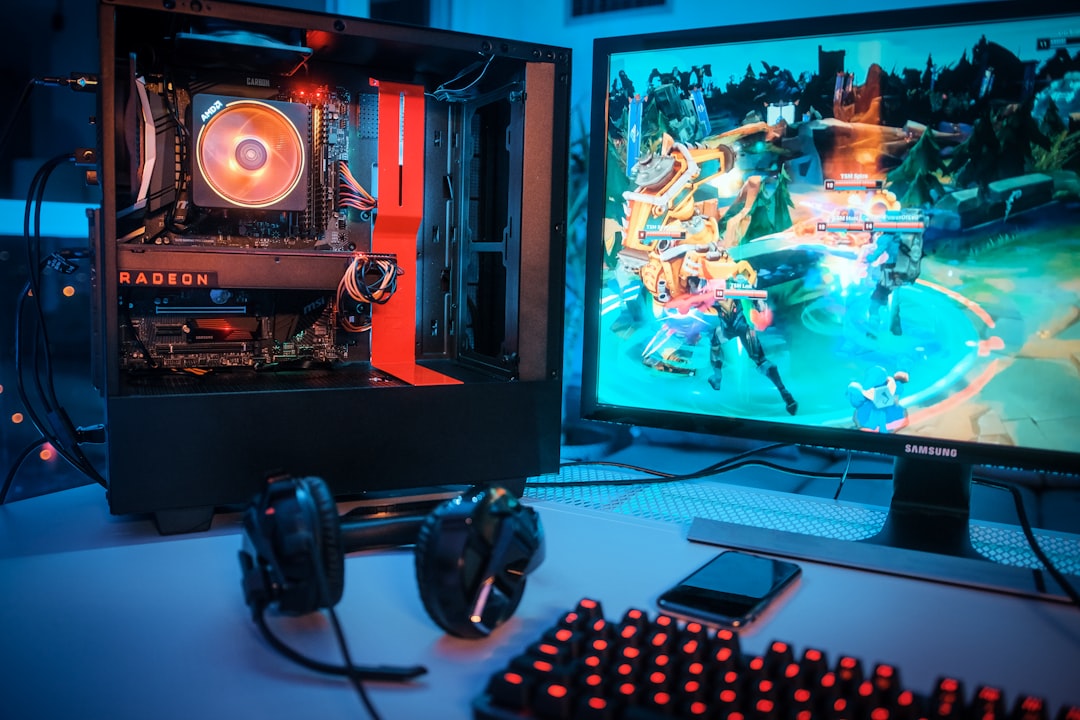
Boost your competitive PC gaming performance with tested Windows settings, in-game adjustments, and hardware tweaks for minimal latency in 2026.
For those entering the realm of competitive PC gaming, optimizing your machine is crucial to getting the performance edge needed to compete at a high level. In 2026, the challenge is no longer just about having powerful hardware; it’s about fine-tuning both software and hardware to run sleek, efficient, and interruption-free. This comprehensive guide lays out exact settings, tools, and methods designed for gaming rigs built to win, tested in titles like Call of Duty, Valorant, Counter-Strike 2 (CS2), and Battlefield.
The Minimalist Operating System Choice
When it comes to the base operating system, the recommended pick in 2026 is Windows 11 IoT LTSC (Long-Term Servicing Channel). This version of Windows offers a stripped-down interface, shedding unnecessary bloat like live tiles, background processes, and telemetry features found in other editions. While older LTSC editions like Windows 10 LTSC are even leaner, modern anti-cheat systems in widely played competitive games can block these older OS versions. Stick with Windows 11 IoT LTSC for seamless gaming and compatibility.
Display Settings: Maximizing Your Frames
- Display Mode:
- Single monitor setups: Use Full Screen Exclusive mode to allow your game direct access to your monitor, reducing latency and ensuring cleaner frames.
- Dual monitor setups: Opt for Full Screen (Borderless). The small trade-off in latency is negligible and worth it for the improved multi-tasking capabilities.
-
NVIDIA Reflex:
- Always enable On + Boost mode. This ensures your GPU and CPU processes stay in sync, cutting system latency. The “Boost” mode keeps GPU clocks maximized for smoother performance when the system is GPU-bound.
-
Frame Rate Limits: Set your custom frame limit 2-3 frames below your monitor’s maximum refresh rate (e.g., for a 240Hz panel, set frame limit at around 237 fps).
-
HDR: Keep it off during competitive play. HDR can create visual distractions and adds processing overhead.
-
Upscaling and Sharpening: On NVIDIA cards:
- Use DLSS Performance Mode on modern GPUs. Mid-range GPUs see significant frame-rate improvements here.
- For older RTX GPUs (20 or 30-series), opt for DLSS Preset K instead to maintain consistent performance, as these lack native FP8 processing capabilities.
-
Field of View (FOV): Keep FOV between 95 and 105. For Call of Duty players, going beyond this range weakens aim assist. The sweet spot around 103 balances map awareness without sacrificing aim assist functionality.
Essential Windows Performance Tweaks
A gaming PC can only deliver consistent results if the underlying OS is free from distractions. Here’s a rundown of recommended Windows settings changes:
-
Background Processes and Visual Effects:
- Disable transparency effects, dynamic lighting, and unnecessary animations under Accessibility > Visual Effects.
- Customize the advanced system settings to turn off all visual effects under "Performance Options."
-
App Startup and Privacy Settings:
- Under App Startup, disable all non-essential applications that launch at boot.
- Turn off data-collecting features under Privacy & Security, including location, advertising ID, and diagnostic data sharing.
-
Power Settings:
- Use the Ultimate Performance Plan to keep your CPU running at full clock speeds. Tweak settings further by disabling USB selective suspend to prevent peripherals like mouse or headset from entering low-power modes mid-game.
-
Core Isolation: Disable "Memory Integrity." Though designed for security, it adds overhead by validating drivers in real-time. Disabling it can yield performance gains between 5-20% depending on your system configuration.
-
Windows Updates: Stop bandwidth hogging by disabling Delivery Optimization, which allows your PC to share updates.
-
Network Settings:
- If using a Realtek network card, manually configure settings such as turning off interrupt moderation and flow control. Each adjustment ensures immediate packet processing without batching, prioritizing real-time gaming.
- Set receive buffer to 512 and transmit buffer to 1024 for granular traffic control.
Hardware Adjustments
-
RAM Overclocking:
- For beginners, enabling the XMP Profile 1 in your motherboard BIOS is an easy win, instantly optimizing memory speeds.
- Advanced overclockers should rely on tools like AIDA64 or TM5 to tweak secondary timings for more performance.
-
GPU Overclocking: MSI Afterburner remains the go-to tool. Adjust core and memory speeds incrementally while ensuring stability through benchmarking utilities.
NVIDIA Control Panel Settings
For NVIDIA GPU users, optimizing the control panel settings has a significant impact on performance:
- Under Manage 3D Settings: Copy tested settings to prioritize low latency and high performance.
- Color adjustments: Set brightness to 50-60% and Digital Vibrance between 65-75% for clear visuals without over-saturation.
- Scaling: Disable scaling and check the No Scaling box to prevent unwanted upscaling, which negatively impacts competitive games.
Wrapping Up Your Setup
This guide not only delves into eliminating background distractions but also blends system-level tweaks with GPU-specific adjustments. Whether you’re tightening up RAM timings, leveraging lightweight OS builds, or optimizing display settings, the focus is clear: streamlined resources for maximum gaming performance.
If gaming is your priority, like many competitive players, these interventions reduce system latency and ensure consistency in high-stakes gameplay. With these settings in place, the path to combining skill with optimal performance is clear for 2026.
Staff Writer
Zoe writes about game releases, indie titles, and gaming culture.
Comments
Loading comments…


